
How Can We Help?
Search for an answer or choose a topic - from learning and gameplay to accounts, purchases, and devices.
Search for an answer or choose a topic - from learning and gameplay to accounts, purchases, and devices.
No questions found. Try another word or browse by topic.
The core game, exploration, and learning activities are completely free, including three starter Chimeras (Fire, Frankenstein, and Magma). Additional Chimeras and expansion quests are available via optional purchase.
Take three quick steps before starting:
Yes. PowerZ has no third-party ads, commercials, or advertising pop-ups. Optional in-game purchases are available for additional Chimeras and selected quests.
Yes. PowerZ is a 3D RPG with a magical world to explore, quests to complete, spells to cast and Chimeras to collect, train and battle with.
Check the compatibility requirements on the PowerZ page in your device’s app store. Availability depends on the device and operating system; its age or price alone is not enough to tell. If installation is blocked or the game does not run correctly, contact [email protected] with the model and system version.
On iPhone or iPad, open the PowerZ download page and check compatibility in the App Store before installing.
Choose New player to begin a new adventure. If you have played before, choose I have an account and use the email linked to your existing account, then select the correct player profile.
You can begin with New player without adding an email straight away. To protect the adventure, add an email to that existing account when the game offers it and finish verification.
Keep access to that email so you can sign in again or change devices. Creating a separate new account does not recover the original progress.
Use our download page to open the official App Store listing for iPhone and iPad. The listing shows the current device and operating-system requirements.
The core game and learning activities are free. Additional Chimeras and selected quests are optional purchases. See what is included.
Yes, PowerZ is constantly evolving! We regularly add new content and incorporate feedback from players. Join our Facebook group to help shape the game’s future!
PowerZ’s learning adventure is designed for children ages 6+. Basic reading skills help children follow story dialogue, instructions, and quests independently.
The US App Store currently rates the app 9+. The intended learning audience and the store’s content rating describe different things. Review the content details in your local store when deciding whether PowerZ suits your child.
Read the in-game journal and the updates page. Previews marked as upcoming describe changes being prepared; they do not mean the update is already available. Visuals and availability can still change.
Yes. PowerZ tracks problem-solving speed, progression, and mistakes as your child plays, then adjusts difficulty in real time. Challenges follow their current skills rather than a fixed age bracket or grade level, helping them stay challenged without feeling overwhelmed.
PowerZ brings math, English, geography, history, science, arts and culture, and logic and reading into an adventure with mini-games, puzzles, and quests. Children practice skills ranging from rapid mental math and grammar to planetary science, reading aloud, and critical thinking.
Explore the skills and competencies to see the learning topics, what your child does in the game, and how the challenges develop.
Yes. PowerZ’s quests and puzzles map to Common Core and Texas Essential Knowledge and Skills (TEKS) frameworks for US grades 1–6. These learning goals are woven into the storyline, while difficulty adapts to each child’s progress rather than keeping them in a fixed grade box.
PowerZ develops critical thinking, ethical reasoning, reading fluency, and logic through gameplay:
Extend the learning offline! We feature ten trusted reference partners—including NASA, the Smithsonian Learning Lab, and the Library of Congress—offering primary sources, science labs, and museum collections to explore together.
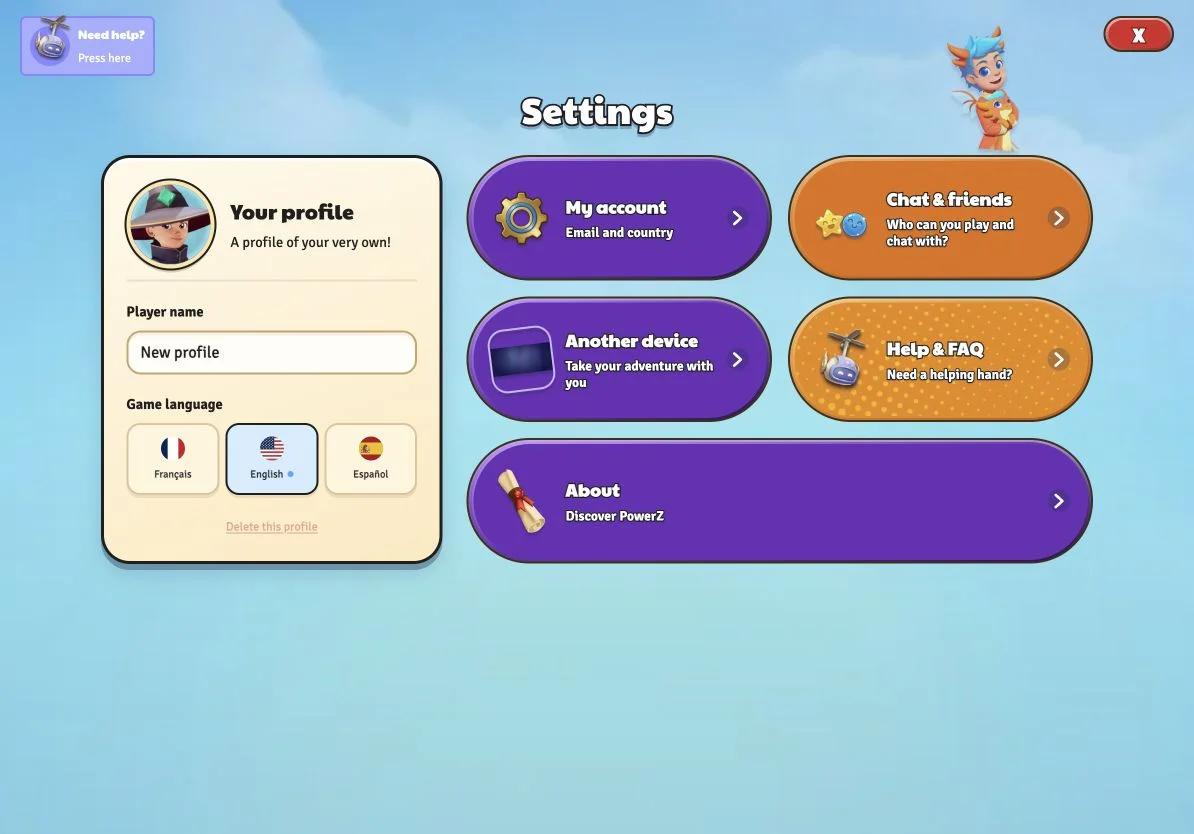
Yes. Open Settings > Profile, pass the Parent Gate, and customize your settings:
You can change these permissions at any time behind the Parent Gate. See the parental controls.
Automated filters screen messages instantly to block personal info, links, and inappropriate language. Our human moderation team also reviews flagged logs. While filters reduce risk, encourage your child to report uncomfortable interactions immediately.
BOLT is PowerZ’s multiplayer mode, where players can battle, challenge each other and work toward rewards.
Manage purchases directly on iOS using Apple controls:
Follow Apple’s purchase-control guide. The in-game Parent Gate protects social settings; for purchases, follow the parental check shown in the game and configure the device controls above.
If you have an active subscription billed by Apple, open Settings > your name > Subscriptions, select it, and review its renewal or cancellation options. Follow Apple’s subscription guide.
For a subscription billed by another provider, check the receipt and contact that provider. Gem packs are one-time purchases; check each offer’s confirmation for any renewal terms.
Gem packs are one-time purchases of in-game currency. Open the Gem shop using the + beside the Gem balance, select a pack, and review the price before continuing. Follow the parental check shown in the game and the store’s purchase confirmation.
Parents can set up purchase approval or block purchases.
Gems are PowerZ’s virtual currency for in-game items and content offered in its shops. Gem packs can be bought with real money, and each offer shows what it unlocks.
You can enjoy the core game, learning activities, and the three free Chimeras without buying a Gem pack. See what is free.
Check the order status in Google Play and make sure you are using the correct PowerZ account and player profile. Reopen the game after the purchase is confirmed. Do not repeat the purchase while it is being investigated.
If the item is still missing, use Help in the game or email [email protected] with the order reference, item name, purchase date, player name, and device model. For a refund request, follow Google Play’s guidance.
Gems obtained through any method other than official channels are invalid and cannot be used in the game. PowerZ bears no responsibility for purchases made outside its distribution channels. For additional inquiries, contact us at [email protected].
The refund process depends on who billed you:
If you need help identifying a purchase, email [email protected] with the order reference and a brief description. Do not send payment-card details or sign-in codes.
Beware of scams claiming to offer free Gems through generators. PowerZ is not responsible for any losses related to the purchase of Gems from unauthorized sources.
Purchased Gem packs are shared across the player profiles that belong to the same account at the time of purchase. Items bought with Gems belong to the player profile that buys them and are not shared.
Before buying for siblings, check the selected account and profile. If a purchase seems to be missing, contact our support team with the item and order reference.
Gems have no expiration date, so you can use them for as long as the PowerZ game is available.
First check whether Apple confirmed the purchase, then reopen PowerZ and check that you are using the correct account and player profile. Do not buy the item again while the first purchase is being checked.
If it still has not appeared, use Help in the game or email [email protected] with the order reference, item name, purchase date, player name, and device model. For billing or refund questions, use Apple’s purchase support.
Your credit/debit card might have been declined for various reasons. First, please ensure that all the personal information you entered is accurate and matches the details registered with your bank. Additionally, check that your card hasn't been reported as stolen and that your payment limit hasn't been exceeded.
Gem packs apply to the player profiles on the account when the pack is purchased. A profile created afterward does not receive those previously purchased Gems. Items bought with Gems belong to the profile that buys them.
If an existing profile appears to be missing a purchase, use Help in the game or email [email protected]. Include the order reference, item name, and affected profile. Do not buy it again until the original purchase has been checked.
Available payment methods are shown by the store handling your purchase and depend on your account and country. On iPhone and iPad, in-app purchases are billed through your Apple Account.
Review the price and payment method on the store’s confirmation screen. Learn how to manage purchase approval.
Open Settings, then Account settings, and choose Permanently delete my account. Read the warning, wait for the confirmation button to become available and confirm. If a confirmation email is sent, follow its instructions to complete the request.
Deleting the account affects all its player profiles and their progress. If you cannot access the account, contact [email protected].
PowerZ uses account information for sign-in and support, game progress and performance to run the adventure and adapt challenges, messages for moderation, and technical data to keep the service working. Purchase information is used to manage transactions. We never sell your child’s data.
Parents can request access to, correction of, or deletion of their child’s personal data by emailing [email protected].
Read the Privacy Policy for the full details, or see how to delete an account.
Start with New player. To protect your progress, add an email address when prompted and complete its verification. If you already have an account, choose I have an account instead of creating a new one.
Yes. An account can contain separate player profiles, so each child can return to their own adventure. Check the selected profile before playing. Use the profile selector to add or switch profiles, following the options available in your game.
You no longer need a password to log in to your PowerZ account.
When you log in, a “Magic Link” will be sent directly to your mailbox to confirm access to your account.
Open the profile you want to remove, then go to Settings and find Delete profile. Read the warning before confirming: this removes that profile’s progress. Account deletion is a separate action affecting every profile.
In the redesigned settings, the last remaining profile cannot be deleted on its own. If you want to remove the whole account, use Account settings or contact support.
Yes, you can resume your game on another device without an account. Simply ensure both devices are nearby. On the second device, select "I have an account", then "Log in with another session." A code will appear with instructions to transfer your game.
Choose I have an account and use the email linked to your original account. Check that you selected the right player profile.
If you cannot find it, contact support with the old device model, player or chimera names and any details of your progress. Creating a new account does not restore or merge the old progress. Keep access to your old device until the account is found.
Add an email address to your account when the game offers it, then complete the email verification. Keep that address accessible: it helps you sign in again on another device. An email still awaiting verification has not completed this step. Before switching devices, make sure you can sign in to the original account.
Check the address for typing errors and look in spam or junk folders. Use the most recent email if you requested several links or codes. If the game offers it, request a new message. If it still does not arrive, contact [email protected] and explain which step is blocked. Do not share the sign-in link or code.
Use in-game controls to instantly block a player or disable chat entirely in Settings > Profile. To request an investigation, email [email protected] with player names, timestamp, and a brief description.
In some cases, you may find yourself completely stuck in the scenery.
If you’re stuck, try double-jumping or sprinting. If that doesn’t work, quit the game and relaunch it.
Use Help in the game settings, or email [email protected]. Include your player name, device model, game version and a short description. A screenshot and the steps that led to the problem help us investigate. Never send your password or sign-in code.
See the four steps to find and share your public information.
The support team may ask for your launcher version, game version and player profile identifier to investigate a problem. Here is how to find them.
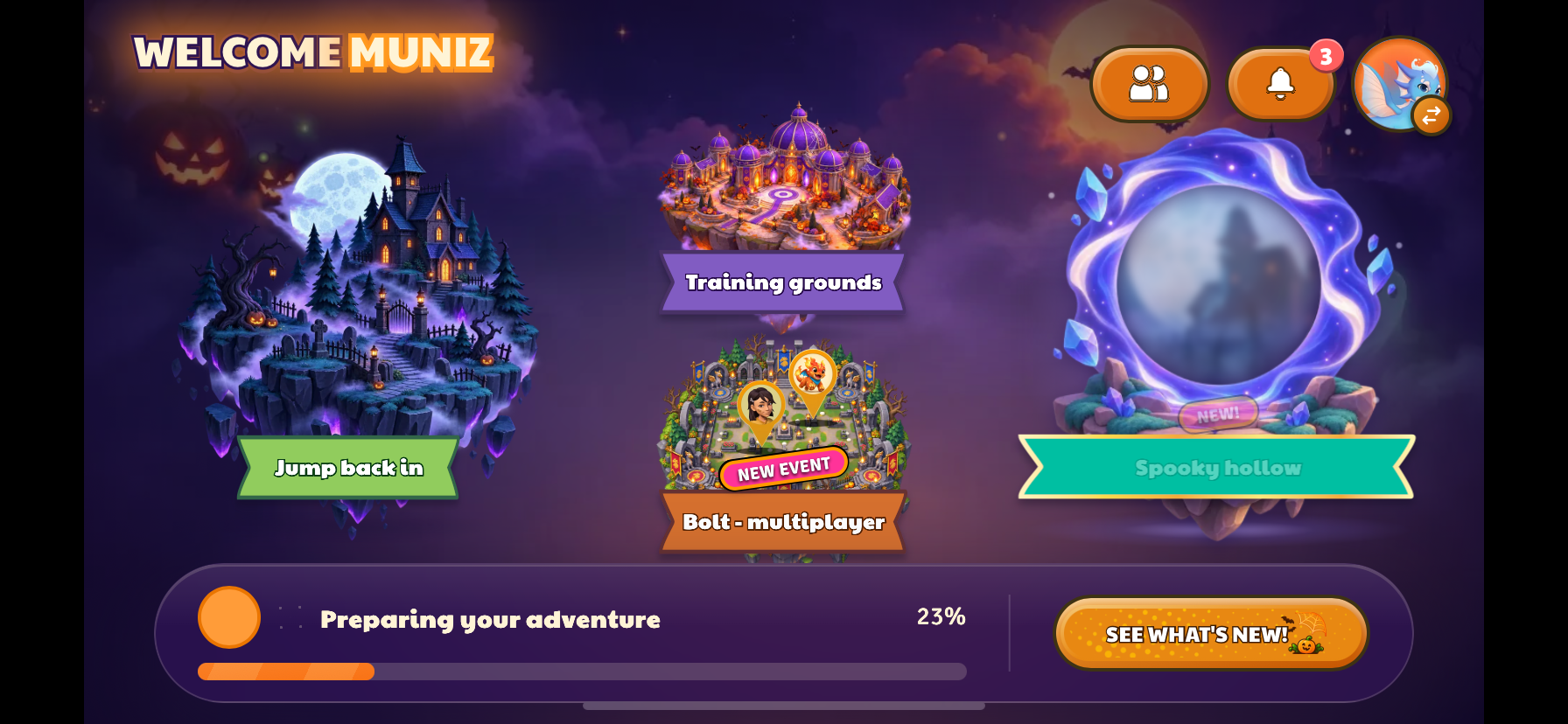
1. Open your player profile.
On the PowerZ home screen, select your avatar in the top-right corner.
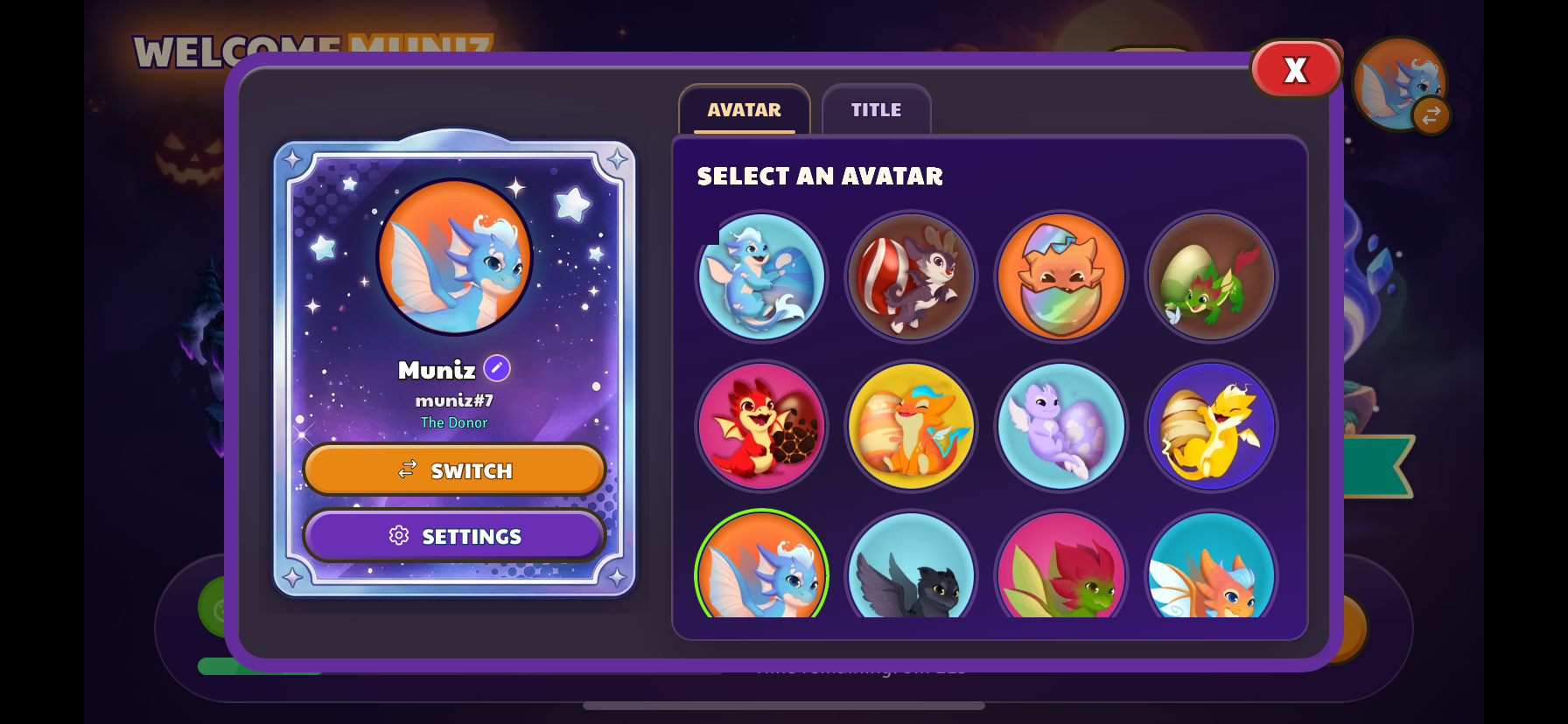
2. Open Settings.
In your profile panel, select Settings below the Switch button.
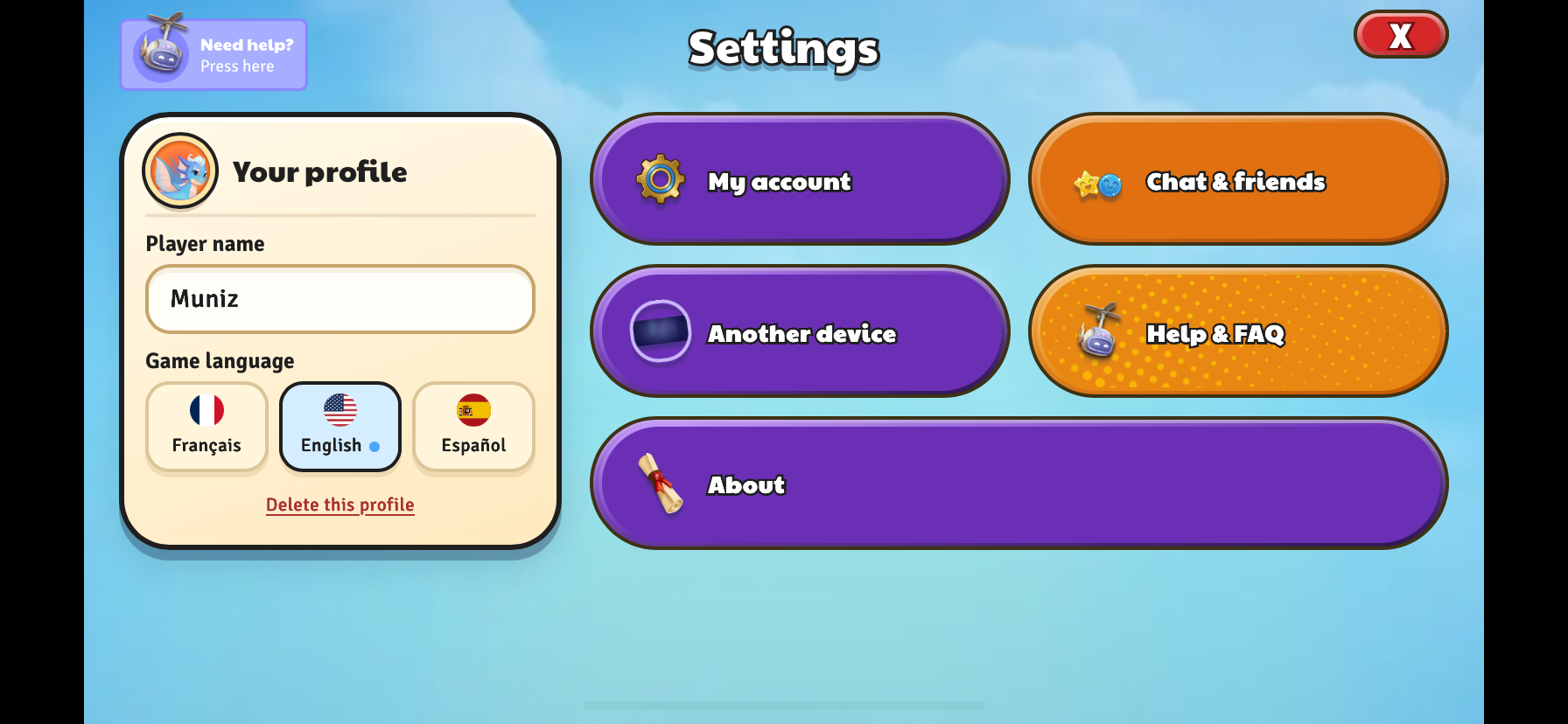
3. Open About.
In Settings, select About at the bottom of the screen.
4. Take a screenshot of your information.
Capture the About window, including the Launcher version, Game version and player profile identifier shown next to child.
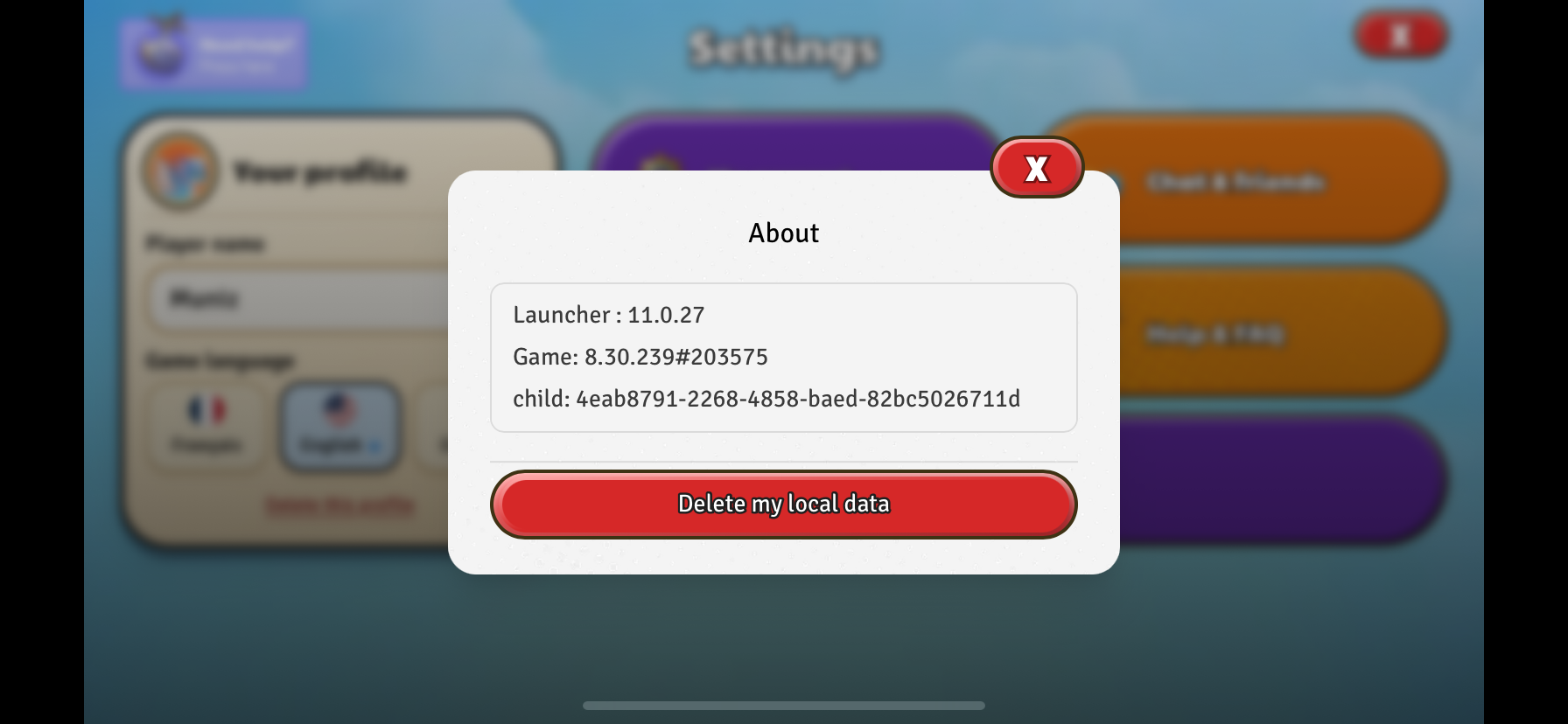
Send this screenshot to [email protected], along with a short description of the problem and your device model. A screenshot is enough: you do not need to select Delete my local data.
Contact support from Help in the game, or email [email protected]. Describe what you were doing, what you expected and what happened instead. Add the time, device model, game version and a screenshot if possible. If you are stuck, avoid deleting your account or reinstalling before checking how your progress is saved.

Download PowerZ for iPhone and iPad to enter the world of Aria today